
When I started running a multi-author WordPress blog, I learned something important: readers develop favorite writers. But when they type an author’s name into your WordPress search box, nothing shows up, even if that author has published many posts.
This happens because the default WordPress search feature does not include author names. Even if the content exists on your site, readers simply cannot find it.
This issue can easily lead to a confusing search experience for readers. And that’s why enabling author search makes such a big difference. When visitors can search by author, they spend less time guessing and more time reading what they came for.
I’ll show you how to allow search by blog post author in WordPress using SearchWP. It only takes a few minutes to set up and helps readers quickly find posts by the same author. 📝

Quick Summary: The default WordPress search does not include author names. To fix this, I recommend using SearchWP to add ‘Author’ as a searchable attribute in your algorithm settings. This allows readers to find posts by their favorite writers instantly.
Why Allow Search by Blog Post Author in WordPress?
When you allow search by blog post author, you improve how readers find and explore content on your site. When visitors can search for specific authors, they discover more relevant posts and spend more time reading.
This feature is especially valuable if you run a multi-author blog. Readers often connect with particular writing styles and want to find more content from writers they enjoy.
Here are the key benefits of enabling author search:
- 👔 Professional appearance – Author search shows that you’ve thought about your readers’ needs and signals that your site is well-organized.
- 🚀 Better user experience – Visitors can quickly find all posts by their favorite authors without clicking through multiple pages or guessing URLs. This reduces frustration and keeps people engaged with your content.
- 🔍 Improved content discovery – Author search helps readers navigate your site’s full content library beyond categories and tags.
- 📑 More page views per visit – When readers can easily find more content from authors they like, they naturally click through to additional articles. This increases engagement and time spent on your site.
Now, here’s how to allow search by blog post author in WordPress:
Step 1: Install and Activate the SearchWP Plugin
To add an author search to WordPress, I recommend using SearchWP. It is the best search plugin for WordPress because it enhances default WordPress search by indexing content types like authors, custom fields, and PDFs. This gives you complete control over your search results.
We use SearchWP on some of our partner websites for better site search. To read more about our experience, see our complete SearchWP review.
First, you’ll need to register for a SearchWP account. On the SearchWP website, click the ‘Get SearchWP Now’ button, pick a plan, and complete the registration steps.
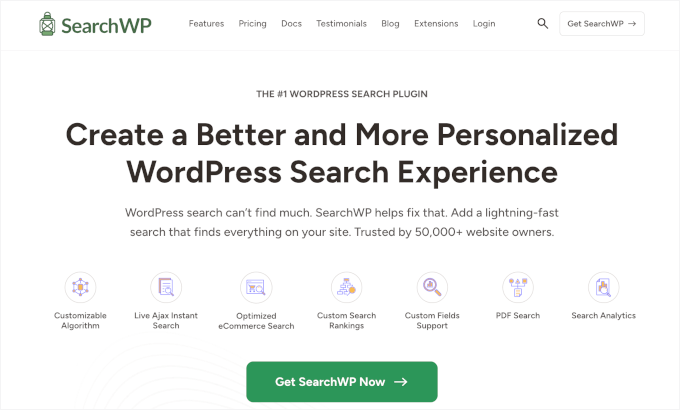
📝 Note: You’ll need the SearchWP Standard plan or higher to make author names searchable. SearchWP does offer a free Live AJAX Search plugin, but it only adds instant live search functionality without the ability to customize search sources.
Once you sign up, you can access your account dashboard and license key. Go ahead and download the SearchWP plugin ZIP file from your account area. The file will be saved to your computer’s downloads folder.
Next, you’ll need to install and activate the plugin on your WordPress site.
From your WordPress admin dashboard, go to Plugins » Add Plugin.

Next, let’s click the ‘Upload Plugin’ button.
In the file uploader, click ‘Choose File’ and ‘Install Now.’
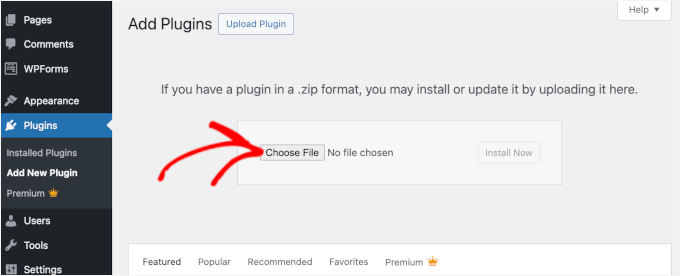
When it finishes installing, click ‘Activate.’ If you need help, see our beginner’s guide on how to install a WordPress plugin.
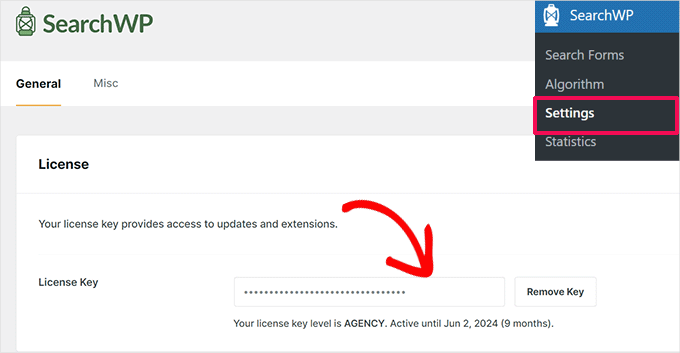
After activation, go to SearchWP » Settings to enter your license key. Simply paste the key you received when purchasing the plugin and click ‘Activate License’.
The plugin will then launch an onboarding wizard to help you get started. You can follow the setup steps or skip them for now – we’ll configure everything in the next step anyway.
Step 2: Customize Search Engine to Include Authors
Now that SearchWP is active, you’ll need to configure it to include author names in your search results. This is where you tell the plugin to look at the author information when someone performs a search.
In your WordPress dashboard, navigate to SearchWP » Algorithm. This is where you control what content SearchWP indexes and searches through.
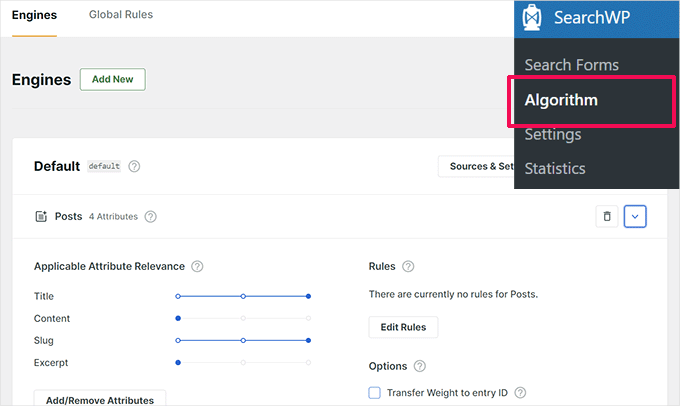
On this page, you’ll see the ‘Default’ search engine – this is the one you’ll customize for author search.
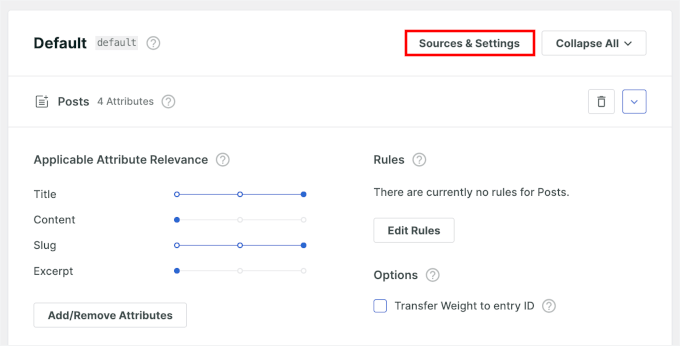
Let’s click the ‘Sources & Settings’ button to view all the content types that SearchWP can search through.
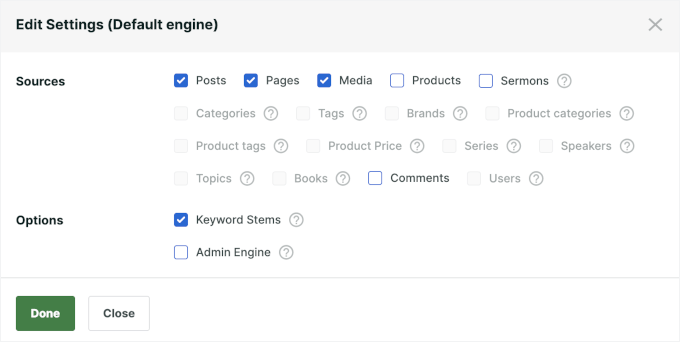
By default, it includes posts, pages, and media, but you can add more sources. For example, if you’re running a WooCommerce store, you can also check the ‘Products’ box.
You can also uncheck any options you want to exclude from search results. When you’re ready, click ‘Done’ to save your changes.
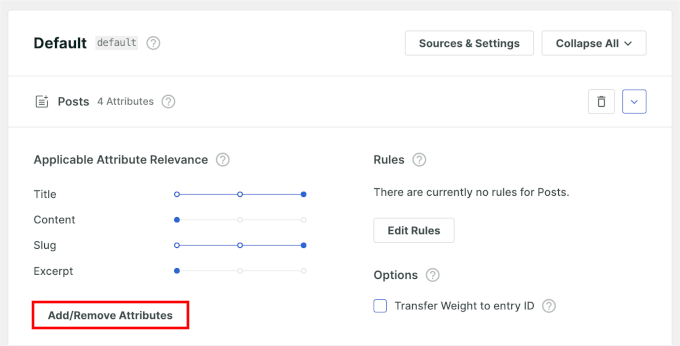
Next, under the ‘Posts’ source section, click the ‘Add/Remove Attributes’ button.
This will let you choose which details SearchWP should include in its search results.
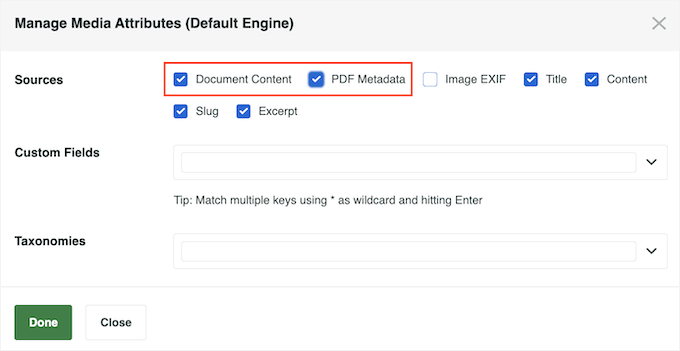
In the popup that appears, look for the ‘Author’ option in the available sources.
Simply check the box next to ‘Author’ to add author names as a searchable attribute, then click ‘Done’ to close the popup.

Once you’ve added the author attribute, you’ll see a relevance weight slider next to it. This slider controls how important author matches are compared to other search results.
I recommend setting the slider somewhere in the middle range. This makes sure that when someone searches for an author’s name, those results appear prominently without completely overshadowing other relevant content.
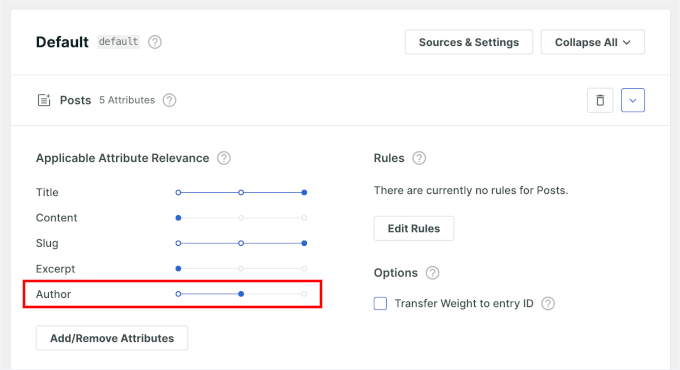
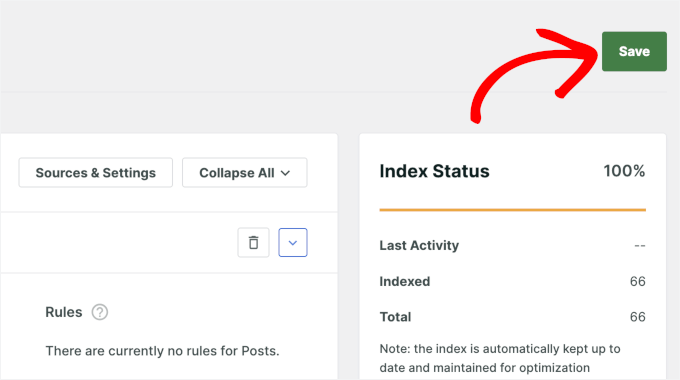
After adjusting the weight, click the ‘Save Changes’ button at the top of the page.
SearchWP will now begin indexing your authors’ names.
🔗 Related: If you also want to search by categories, custom post types, or comments, SearchWP makes those easy to add, too. See our step-by-step guides on:
Step 3: Test Your New Search
After configuring SearchWP, it’s important to test that the author search is working correctly. This ensures your readers will be able to find content by their favorite writers.
Start by visiting your website’s front end. Look for the search form on your site – it’s usually located in the header, sidebar, or footer area.

In the search box, type the name of one of your blog’s authors. SearchWP will look for the author’s Public Display Name, so try searching for that.
Press enter or click the search button to see the results. If everything is set up correctly, you should see blog posts written by that author appearing in the search results.
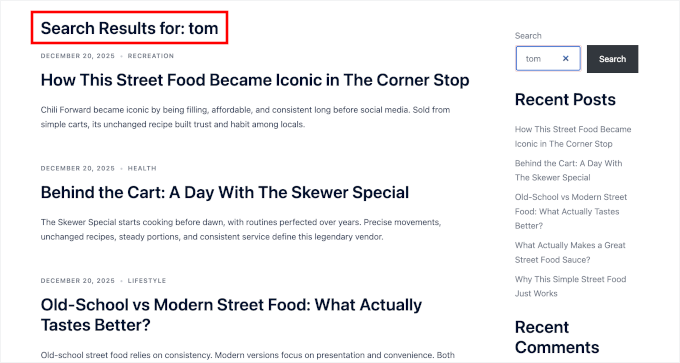
And that’s it – you’ve successfully created an author search for your WordPress blog.
I recommend testing with a few different author names to make sure the feature works consistently. Try searching for authors who have written different numbers of blog posts to verify that all results appear.
If an author’s name doesn’t return results immediately, give it a few minutes. SearchWP needs to build its index in the background. You should also double-check that the author has actually published posts on your site.
You can also test partial name searches. For example, searching for just “John” should return posts by anyone named John Brown.
Bonus Tip: Customize WordPress Search Results Page Further
Now that your author search is working, you may want to find more ways to improve your WordPress search even further.
The default WordPress search is very limited.
It often returns incomplete or irrelevant results, loads slowly, and doesn’t give visitors much context beyond post titles and excerpts. In some cases, searches may even return no results, despite relevant content existing on your site.
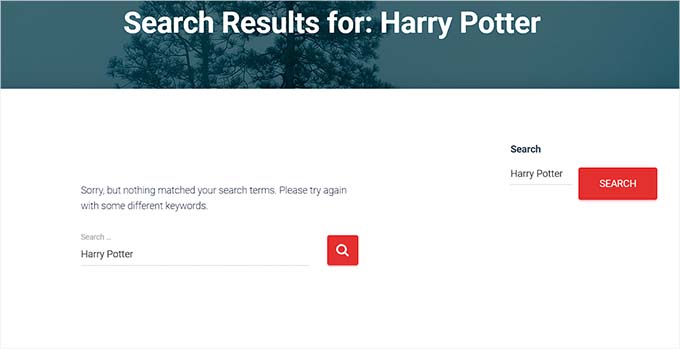
You can fix these issues by customizing the search results page and replacing the default search with a faster, more powerful solution.
You can improve result relevance, promote important content, search in more places like custom fields or PDFs, and create a smoother search experience.
For a complete walkthrough on improving your search results page design and functionality, see our guide on how to customize the search results page in WordPress.
Expert Tip: If you want an alternative to author search, WPFilters enables you to create custom content filters (including author-based) without coding, using drag-and-drop blocks that inherit your theme styling. To learn more, see our complete WPFilters review.
FAQs About Searching Blog Posts by Author
Before we wrap up, here are some common questions readers have about searching blog posts by author.
Can I add authors to WordPress search results without using a plugin?
Yes, you can add authors to WordPress search results without a plugin by modifying your theme’s functions.php file with custom code. However, this requires PHP knowledge and can break if not done correctly, which is why I recommend using a plugin like SearchWP instead.
Will the author search work with custom post types?
Yes, author search will work with custom post types as long as you configure SearchWP to include those post types in your search algorithm. You can add custom post types in the same ‘Sources & Settings’ area where you enabled author search.
Can I limit the author search to internal teams or private content libraries?
Yes. SearchWP automatically respects WordPress content visibility settings. If you mark posts as ‘Private’ or use a membership plugin to restrict content, SearchWP makes sure that only authorized users (like logged-in team members) can see those results.
Does author search affect SEO or site performance?
No, enabling author search doesn’t negatively affect SEO or site performance. SearchWP runs efficiently in the background and doesn’t change how search engines like Google index your site – it only improves the search experience for your visitors.
Related Articles for Improving WordPress Search
I hope this tutorial helped you learn how to allow search by blog post author in WordPress.
You might also want to see our other helpful guides on:
- How to Improve WordPress Search with SearchWP
- How to Add Fuzzy Search in WordPress to Improve Results
- How to Add Multilingual Search in WordPress
- How to Add Live AJAX Search to Your WordPress Site
- How to Highlight the Search Terms in Results in WordPress
If you liked this article, then please subscribe to our YouTube Channel for WordPress video tutorials. You can also find us on Twitter and Facebook.
The post How I Enabled Search by Blog Post Author in WordPress (in 3 Easy Steps) first appeared on WPBeginner.
Tell us how can we improve this post?